 Bigger
Guides › Premiere Pro
Animated Subtitles in Premiere Pro: Word-by-Word Captions
The social-media look, with words appearing as they are spoken, key words in color and a bit of motion, is easy to love and tedious to build. Here is how it works by hand, and how to get it in minutes.
Updated October 28, 2026 · by The Bigger Studio
Bigger Subs in Premiere Pro is fully tested on Mac. On Windows it is still in testing and may have bugs.
Quick answer
- By hand: create the text, then animate its Scale, Position or Opacity with keyframes on every word. It works, but it is slow.
- With a preset: save a text style in Essential Graphics and reuse it. Faster, but still not word-by-word.
- Automatically: Bigger Subs transcribes the voice and animates every word for you, directly inside Premiere Pro 2025 or newer.
What makes subtitles feel animated
When people say animated subtitles, they usually mean a mix of five things:
- Words appear in time with the voice, a few at a time instead of a whole sentence.
- An entrance: the words pop, slide, fade or drop into place.
- Emphasis: the important word is bigger or in another color.
- A style: a recognizable font, color and background.
- Sound: a soft click or hit when a word lands.
When all five agree with the voice, the video feels edited with care. When they don't, it feels cheap.
The manual way in Premiere Pro
- Transcribe the sequence in Window › Text to get the words and their timing.
- Create a text layer with the Type tool (T) and style it in Essential Graphics.
- Cut the text so that each clip holds one to three words, lined up with the voice.
- For each clip, open Effect Controls and set keyframes. For example, scale from 70% to 100% over six frames and opacity from 0 to 100%.
- Select the keyframes, right-click and choose Temporal Interpolation › Ease Out so the motion doesn't look robotic.
- Color the key words by hand, and place a sound effect under each hit.
It is a good way to learn and perfectly fine for a 20-second clip. For a 10-minute video it can take a whole day, and any edit to the audio means starting parts of it again.
The fast way: Bigger Subs inside Premiere Pro
Bigger Subs does that whole list for you. It transcribes the audio on your computer, times each word to the voice and draws the animation. The result is placed on your timeline as a transparent clip on its own track, so your video and your edit stay exactly as they are.
- Open your sequence in Premiere Pro 2025 or newer.
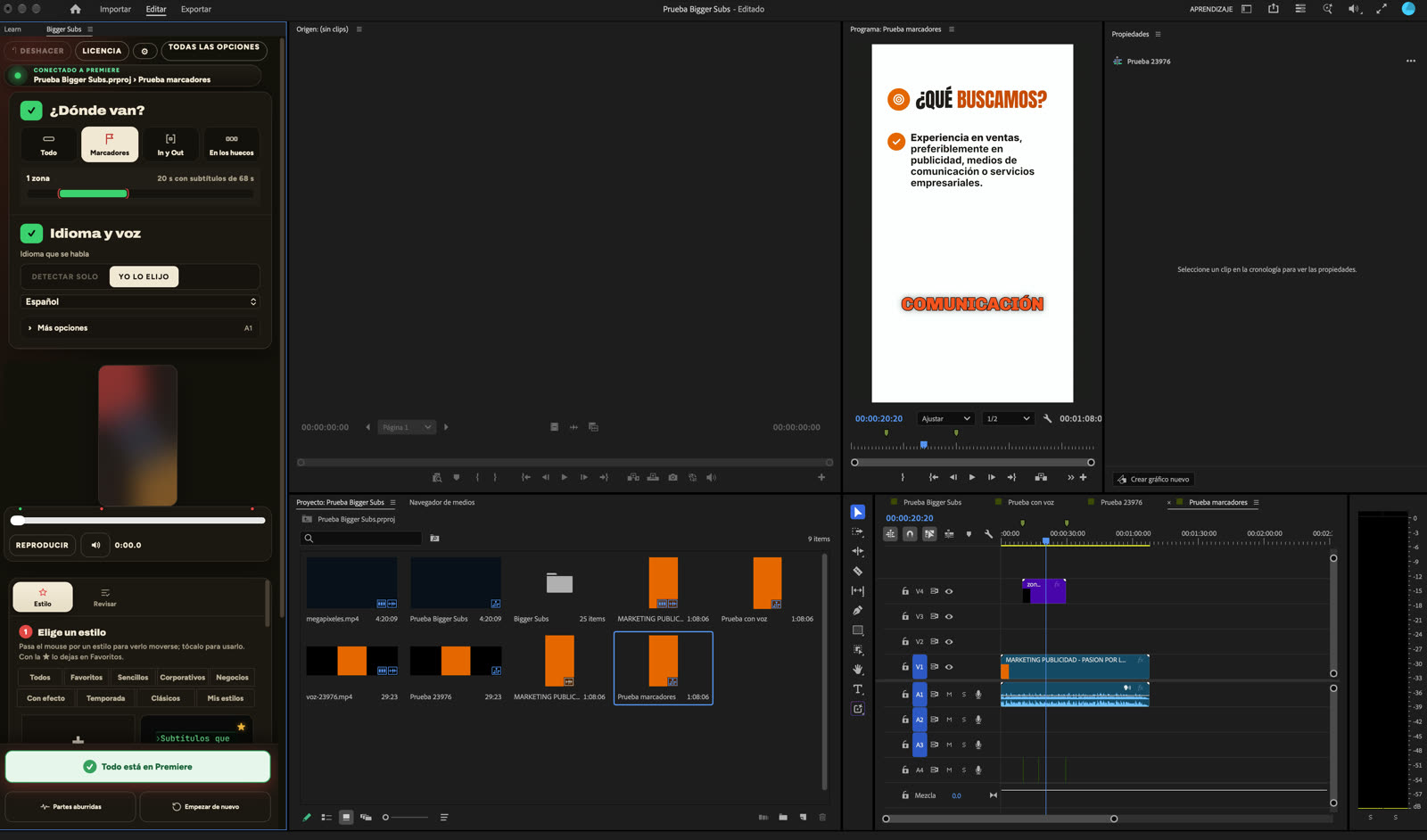
- Open Window › UXP Plugins › Bigger Subs. A panel appears inside Premiere.
- Choose where the subtitles go: everything, the zones between markers, or the In/Out range.
- Choose the language and a style. The preview shows the style over a real frame of your video before you create anything.
- Press create. A transparent ProRes 4444 clip with the animated subtitles lands on its own track, and the sounds go on another.
- Open the review step, correct any word and update.
What you can control
- More than 60 styles, from clean corporate looks to loud, high-energy ones.
- Emphasis on key words, picked automatically from the voice and the meaning, and editable.
- Effects and entrances that you can make stronger or softer.
- Sound effects on their own track, so you can mute or move them.
- Safe margins for TikTok, Reels and Shorts, so nothing hides behind the interface.
- Words at a time: show one, two or three words per hit, depending on your pace.
Animated subtitles and accessibility
Animated subtitles are a design choice, not a replacement for proper captions. If your video also needs a caption file for accessibility or a platform requirement, make an .srt with Premiere's Captions tab and publish both versions: the animated one for social feeds and the caption file where it is required.
Styles for every kind of video
The right style depends on the video. A corporate interview needs something calm and clean, with small movement and strong contrast. A product ad can take a loud style with big colored words and a hit sound. A vertical clip for a personal brand usually works best with one distinctive style used every time. Bigger Subs groups its styles by type, so you can start from the mood you want, preview it on your own footage and change your mind in seconds without redoing any keyframes.
Tips for animated subtitles that work
- Two or three words at a time is easier to read than a whole line. One word at a time suits fast, punchy speech.
- Use one accent color for emphasis. Three different highlight colors make the screen noisy.
- Keep a consistent style through a series so people recognize your videos.
- Watch your video on a phone with the sound off before you publish.
FAQ
How do I animate text word by word in Premiere Pro?
By hand, you split the text into one clip per word or group of words and add keyframes to each one. To skip that work, Bigger Subs creates the word-by-word animation automatically from the audio.
Do animated subtitles slow down my timeline?
The subtitles arrive as one transparent video clip on its own track, which plays like any other clip. You don't get dozens of text layers with keyframes to slow the project down.
Can I change the style after I create the subtitles?
Yes. Choose another style or edit the words in the review step and update the clip. Your video and the rest of the edit are not touched.
Which version of Premiere Pro do I need?
Bigger Subs works with Adobe Premiere Pro 2025 or newer, on Mac and Windows.
Try Bigger Subs free for 2 days
Mac and Windows. Works with Premiere Pro 2025 or newer, DaVinci Resolve and Final Cut Pro. Everything runs on your computer.
Get the free trialMore guides: Add subtitles in Premiere Pro · Auto captions in Premiere Pro · Captions plugin for Premiere Pro · Highlight key words in captions