 Bigger
Guides › Podcast captions
Podcast Video Captions: Subtitle Episodes and Interview Clips
Video podcasts live or die on silent autoplay. Here is how to caption a full episode and turn its best moments into animated clips, in DaVinci Resolve or Premiere Pro.
Updated October 29, 2026 · by The Bigger Studio
Quick answer
- Why captions: clips from podcasts are watched muted on social media. Without captions, most people scroll past.
- Edit first, caption last. Finish the cut, then add captions so the timing never changes.
- Subtitle only the parts you need. Use markers or In/Out points for the best moments instead of the whole hour.
- Always review names. Guest names, brands and technical words need a quick check.
Why video podcasts need captions
A podcast episode is mostly talking. On a platform where people watch with the sound off, a static picture of two people at microphones gives them no reason to stop. Captions give the eye something to follow, and they make the words clear when the audio is quiet or the speakers have different accents. They also make your content accessible to viewers who are deaf or hard of hearing, and to anyone watching in a noisy place.
Most podcast video work falls into two jobs: the full episode for YouTube, and short clips for TikTok, Reels and Shorts. They need different captions, so plan for both.
Long episodes and short clips
- Full episode: calm, simple captions, one or two lines, readable but not distracting. An SRT file is often enough for YouTube.
- Short clips: large, animated, word-by-word captions with the key word highlighted. This is where the style makes a difference.
If you need the SRT workflow, see our SRT guide.
Prepare your edit
- Pick the clips. Mark the strongest 30 to 60 seconds with a marker at the start and another at the end.
- Clean the audio. Remove long silences and mistakes. Background music under the voice makes transcription harder, so lower it or keep it off the voice track.
- Reframe for vertical. For short clips, crop each speaker to fill a 9:16 frame, or stack two speakers one above the other.
- Leave room for captions. Keep faces in the upper part of the frame and the lower third free.
Tips for interviews with several speakers
- Keep every line short, so the viewer can follow quick back and forth.
- Use a different color for each speaker only if the video really needs it. Otherwise one style looks cleaner.
- When two people talk over each other, accept that the captions will follow the dominant voice, and check that part by hand.
- Highlight the key phrase of the answer, not every word. Too much emphasis feels like shouting.
The native way in DaVinci Resolve
- Place your episode or clip on the timeline.
- Go to Timeline › Create Subtitles from Audio and choose language and caption preset.
- Read through the subtitle track and fix the words that are wrong.
- Style the whole track in the Inspector: font, size, color and background.
This gives you readable captions, appearing a line at a time. It is a solid choice for long episodes.
The native way in Premiere Pro
- Open the Text panel and go to the Captions tab.
- Choose Transcribe sequence, select the language and the audio track, and run it.
- Edit the transcript, then create captions from it.
- Adjust the look in the captions track settings.
Animated captions for podcast clips with Bigger Subs
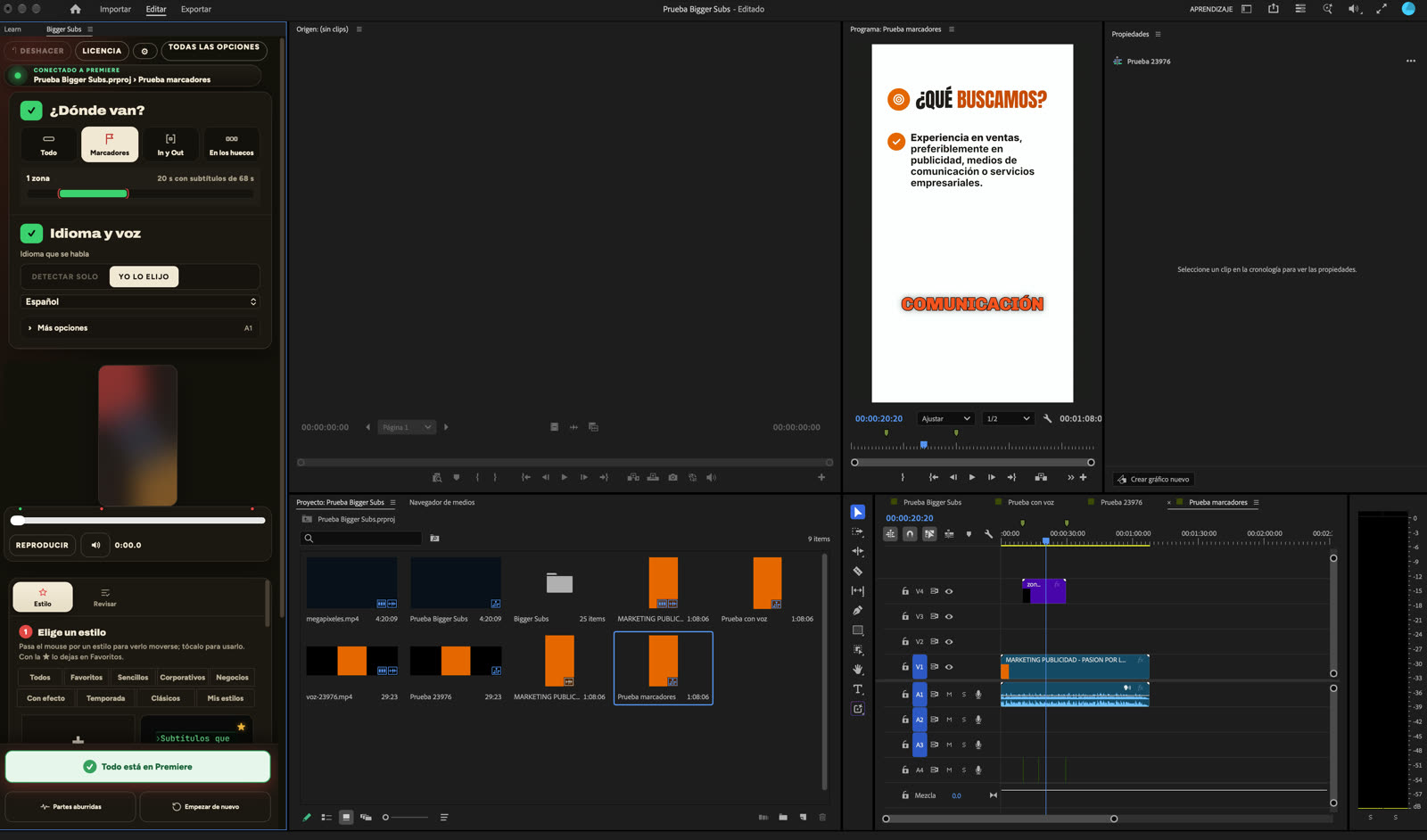
For short clips, Bigger Subs gives you the social look in a few minutes. It is a desktop app for Mac and Windows that transcribes the voice on your computer and places animated, word-by-word subtitles on your timeline as a transparent clip on its own track. The sounds go on a separate track. It works with DaVinci Resolve (free and Studio), Final Cut Pro on Mac, and Premiere Pro 2025 or newer, where it opens as a panel from Window › Plugins.
- Set markers on the parts of the episode you want to caption, or set In and Out points.
- Open Bigger Subs and choose Markers or In/Out, so only those parts get subtitles.
- Choose the language of the episode and one of more than 60 styles. The preview uses a frame of your own video.
- Press create, then review names and numbers before you finish.
You can set how many words appear at a time, and the subtitles respect the safe margins of TikTok, Reels and Shorts. Because everything runs on your computer, your unpublished episodes stay private, and after activation it works offline.
A repeatable routine
Podcasters who publish every week use the same routine: cut the episode, mark five or six strong moments, run captions on the markers, review the text once, and export the clips. Because Bigger Subs only touches the marked zones, it is quick to repeat, and you can run it again later if a clip changes.
FAQ
Should I caption a full podcast episode or only clips?
Both are useful. Simple captions or an SRT work for the full episode on YouTube, and animated captions work best on short clips for social media.
Can Bigger Subs caption only the best moments of an episode?
Yes. Choose markers or In/Out points and only those zones get subtitles, so you don't process the whole hour.
Does it work with Premiere Pro?
Yes. It works with Premiere Pro 2025 or newer on Mac and Windows, opening as a panel under Window › Plugins, and also with DaVinci Resolve and Final Cut Pro.
Is my episode uploaded anywhere?
No. The voice is transcribed on your computer and the video is not uploaded. After activation the app works offline.
Try Bigger Subs free for 2 days
Mac and Windows. Works with DaVinci Resolve, Premiere Pro 2025 or newer and Final Cut Pro. Everything runs on your computer.
Get the free trialMore guides: Transcribe video offline · Word-by-word captions in Premiere Pro · Highlight key words in captions · Safe zones for TikTok, Reels and Shorts