 Bigger
Guides › SRT files
SRT Subtitles in DaVinci Resolve and Premiere Pro: Import and Export
An SRT is the file every platform understands. Here is how to bring one into DaVinci Resolve or Premiere Pro, how to export your own, and what to do when you want more than plain text.
Updated October 29, 2026 · by The Bigger Studio
Bigger Subs in Premiere Pro is fully tested on Mac. On Windows it is still in testing and may have bugs.
Quick answer
- What an SRT is: a plain text file with numbered lines, a start and end time, and the words to show.
- DaVinci Resolve: File › Import › Subtitle to bring one in, and the Deliver page to export one.
- Premiere Pro: import the file into your project and add it to the sequence as a caption track; export from File › Export › Captions.
- Want a designed look? An SRT carries no style. Bigger Subs makes animated subtitles directly on your timeline and can also save the text as an SRT.
What is inside an SRT file
SRT stands for SubRip. It is the simplest subtitle format that exists, and almost every platform accepts it. Open one in any text editor and you will see blocks like this: a number, a line with the start time and the end time separated by an arrow, and one or two lines of text, then a blank line.
That is all. There is no font, no color and no position. Each platform or editor decides how to draw the text, which is why an SRT is perfect for accessibility and for uploading to YouTube or Facebook, but not for a custom look. If you want the words to pop on screen, you need a different route, which we cover at the end.
Import an SRT into DaVinci Resolve
- Open your project and make sure the timeline you want is the active one.
- Right-click the track area and add a subtitle track, if the timeline does not have one yet.
- Go to File › Import › Subtitle and choose your .srt file. It lands in the Media Pool.
- Drag the subtitle clip from the Media Pool onto the subtitle track.
- Move the clip so its first frame lines up with the first frame of your edit.
You can click the subtitle clip to edit lines in the Inspector, change the font, size and color of the whole track, and split or merge lines. The look applies to every line at once.
Export an SRT from DaVinci Resolve
- Go to the Deliver page.
- In the video settings, find the subtitle options and turn on subtitle export.
- Choose SRT as the format. Pick a separate file, so the text is not burned into the picture.
- Add the job to the render queue and render. You get a .srt file next to your video.
Import an SRT into Premiere Pro
- Open the project and choose File › Import. Select your .srt file; Premiere recognizes it as a caption file.
- Drag the caption file from the Project panel onto your sequence, above the video tracks.
- Open the Text panel and its Captions tab to read and edit each line.
- Check the language and the caption format in the settings of the track before you export.
Export an SRT from Premiere Pro
- Select the sequence with your captions.
- Choose File › Export › Captions.
- Pick the SRT format and a place to save it.
If you export the video itself, you can also choose to include captions as a separate sidecar file, so the platform receives video and text together.
Common SRT problems
- Strange characters: save the file as UTF-8. Accents and symbols break in other encodings.
- Lines too long: keep each line short, around 40 characters, with at most two lines per block. Long lines are hard to read on a phone.
- Timing is off: check the start timecode of the timeline and the frame rate. A mismatch moves every line the same amount.
- Wrong order: blocks must be numbered in order and must not overlap in time.
An SRT is also the file to send to a client or a translator. They can fix the words in a text editor, send it back, and you import it again.
When an SRT is not enough
For short vertical videos, most viewers watch without sound, and plain white text on the bottom of the screen does not hold attention. Social creators use words that appear one by one, with a highlighted key word, a background and a small sound. A standard SRT cannot do any of that.
The fast way with Bigger Subs
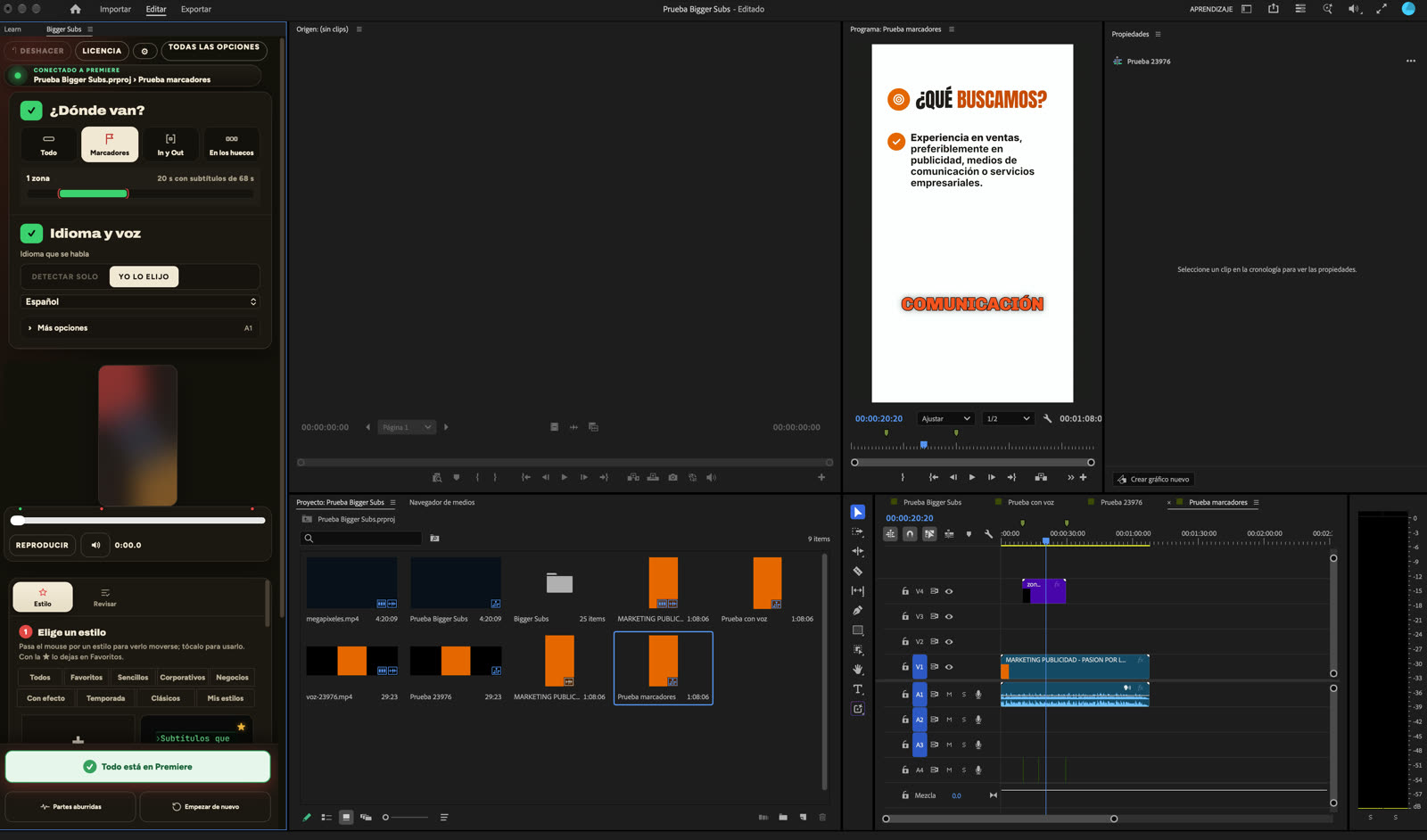
Bigger Subs is a desktop app for Mac and Windows. It transcribes the voice on your computer, without uploading the video, and places animated, word-by-word subtitles on your timeline as a transparent clip on its own track. The sounds go on another track. It works with DaVinci Resolve (free and Studio), Final Cut Pro on Mac, and Premiere Pro 2025 or newer, where it opens as a panel under Window › Plugins.
- Open Bigger Subs and connect it to your editor.
- Choose where the subtitles go: everything, markers, In/Out points, or the gaps.
- Choose the language and one of more than 60 styles. The preview uses a real frame of your video.
- Create. Then review the text and fix names and numbers before you finish.
It can also save the text as an SRT file, so you keep one copy for YouTube or a client and still have the animated version in your edit. Both come from the same transcript, so you only review the words once.
Which one should you use?
Use an SRT when the platform draws the text itself, when a client needs a file to approve, or when you deliver in several languages. Use animated captions in the timeline when the look is part of your video. Many editors do both: they deliver the animated version for social media and the SRT for the long version on YouTube.
FAQ
How do I import an SRT file into DaVinci Resolve?
Go to File › Import › Subtitle, choose the .srt file, then drag the subtitle clip from the Media Pool to a subtitle track and line it up with the first frame of your timeline.
How do I export an SRT from Premiere Pro?
Select your sequence and choose File › Export › Captions, then pick the SRT format and a location.
Can an SRT file have fonts and colors?
No. An SRT only holds the text and the timing. The platform or editor decides how it looks. For a designed, animated look you need captions placed on the timeline, like the ones Bigger Subs creates.
Can Bigger Subs save an SRT?
Yes. Bigger Subs can save the transcribed text as an SRT file, and it also places the animated subtitles on your timeline.
Try Bigger Subs free for 2 days
Mac and Windows. Works with DaVinci Resolve, Premiere Pro 2025 or newer and Final Cut Pro. Everything runs on your computer.
Get the free trialMore guides: Add subtitles in DaVinci Resolve · Add subtitles in Premiere Pro · Auto captions in Premiere Pro · Transcribe video offline